OVE WebUI Admin Authentication via LDAP
In this article I describe how to configure LDAP authentication for the WebUI login of the Alcatel-Lucent Enterprise OmniVista 2500 Network Management System (OVE).
OmniVista 2500 NMS (OVE)
The following configuration steps are required:
- Define the LDAP server
- Create a user group in OV2500 and in AD
- Switch authentication to LDAP
License Requirements
No additional license is required for this feature.
Define the LDAP Server
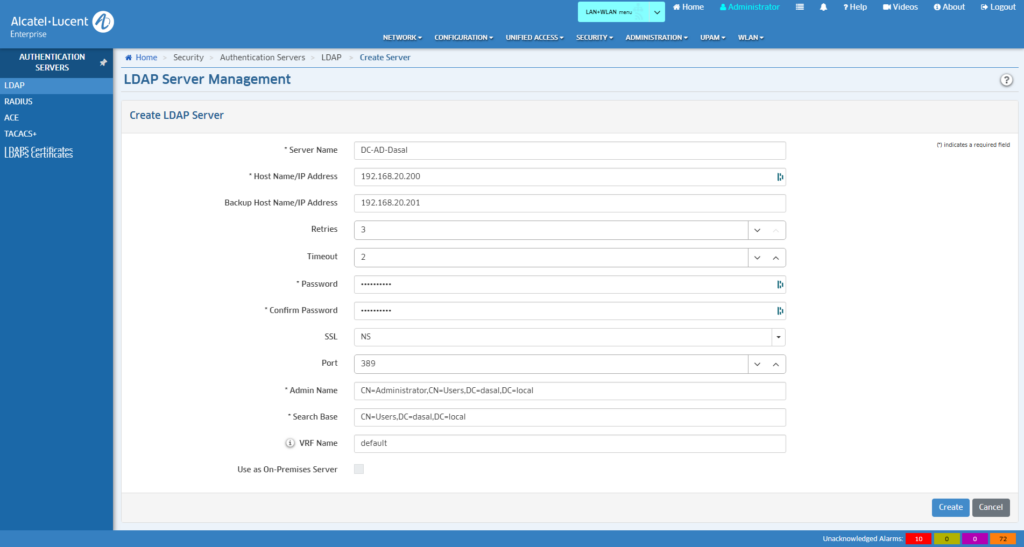
Under Security > Authentication Servers > LDAP we create a new entry.
We assign a unique Server Name and enter the server’s Host Name / IP Address. Optionally, a second server can be defined as a backup.
The Password belongs to the account used to query LDAP; read-only access is sufficient. The Admin Name is that read-only user, and the Search Base must be specified accordingly.
A handy way to validate access to LDAP / AD is a tool such as Softerra LDAP Browser.
Create a User Group in OV2500 and AD
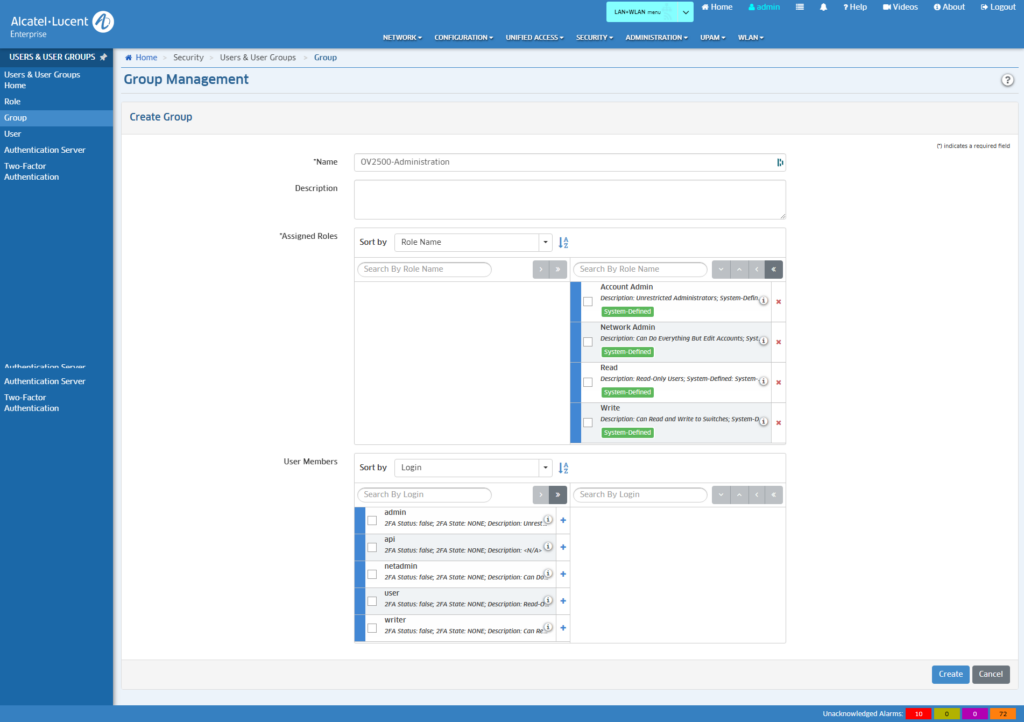
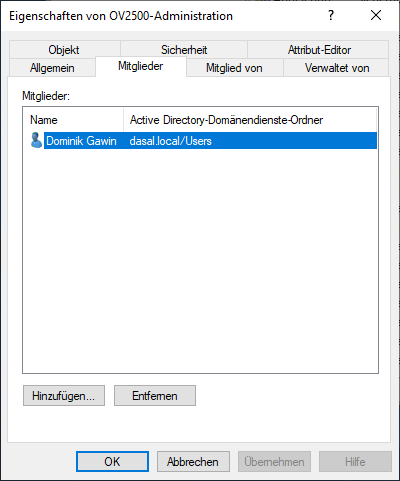
In OmniVista 2500, under Security > Users & User Groups > Group, we create a new user group. A group with the exact same name is created in AD. Only AD users who are members of the identically named AD group will later be granted access to OV2500.
Switch Authentication to LDAP
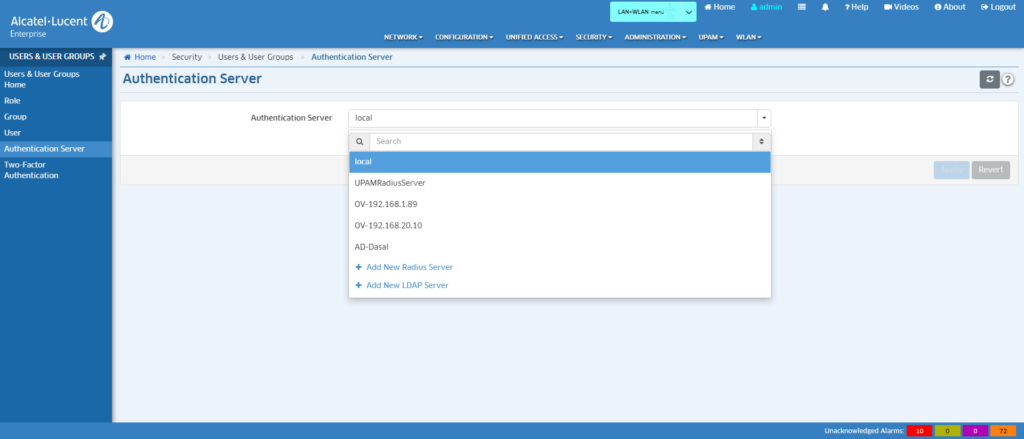
In OmniVista 2500, under Security > Users & User Groups > Authentication Server, we change the Authentication Server from local to our AD-Dasal server. OmniVista 2500 currently only supports SIMPLE as the Authentication Method.
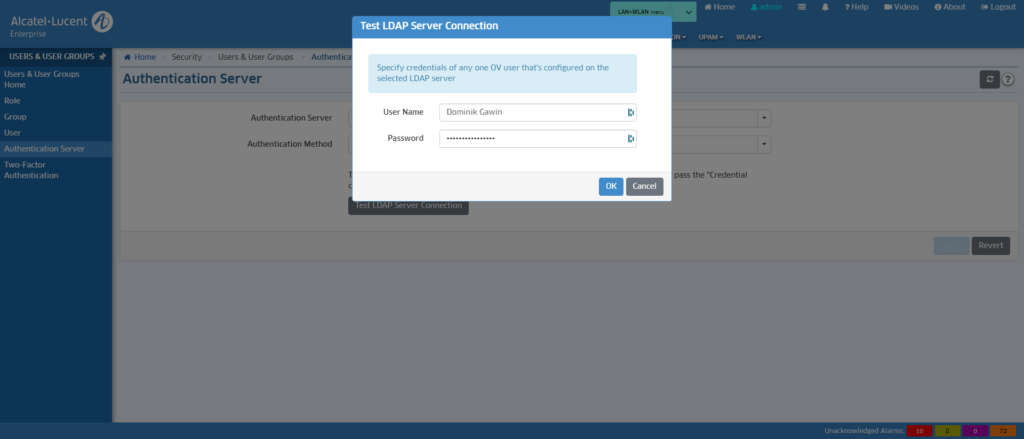
We click Test LDAP Server Connection. OmniVista 2500 then prompts us to test authentication, and we enter our test user, who is a member of the group created earlier.
After successful authentication, a confirmation page is displayed.
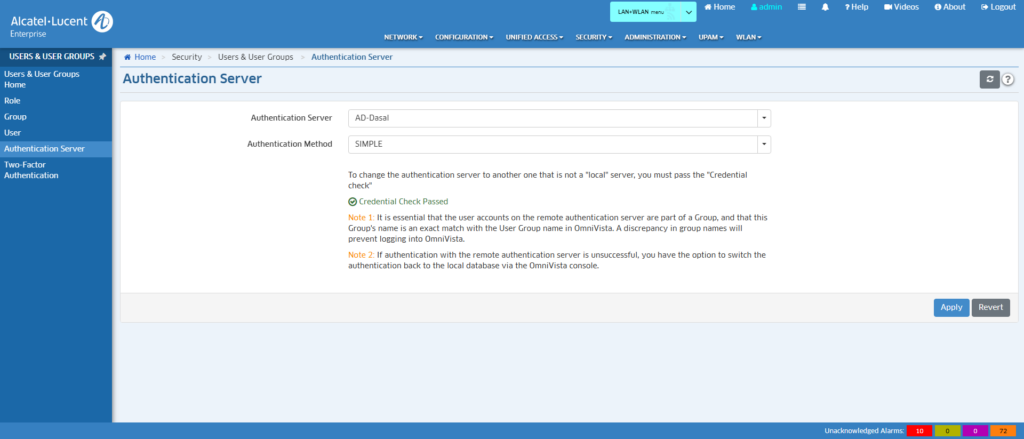
We click Apply, and WebUI user authentication is now switched to LDAP.
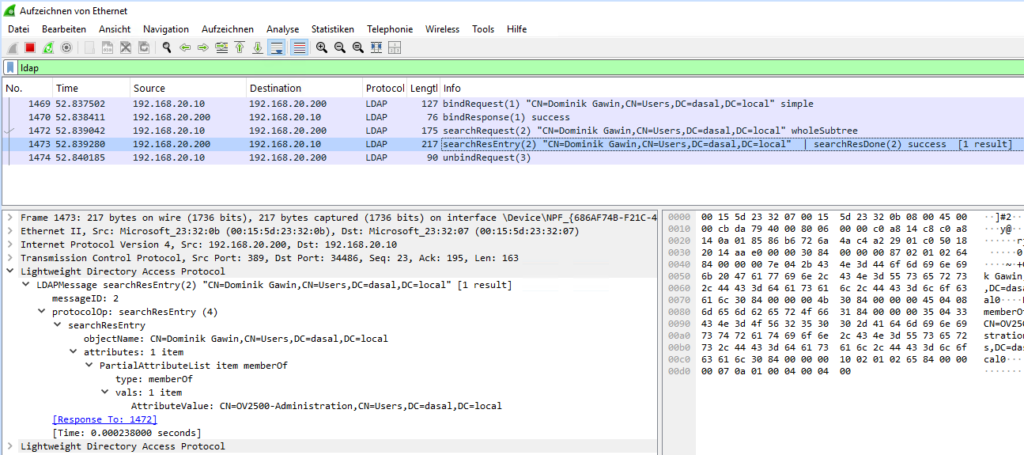
LDAP Communication in Wireshark
Login OK
Wrong Password
Login is not possible.


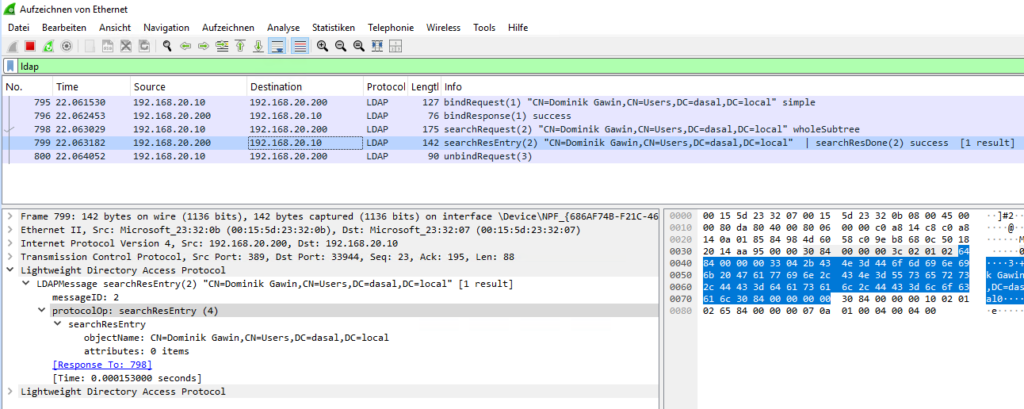
No Group Membership
If the user is not a member of the identically named group in AD, they will only be able to log in to OmniVista with read-only rights (Default group).
Update 2025-01-07
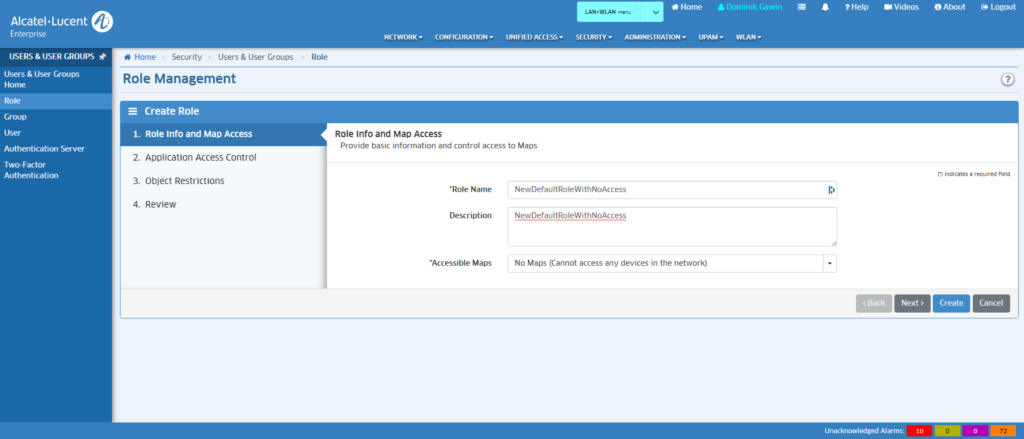
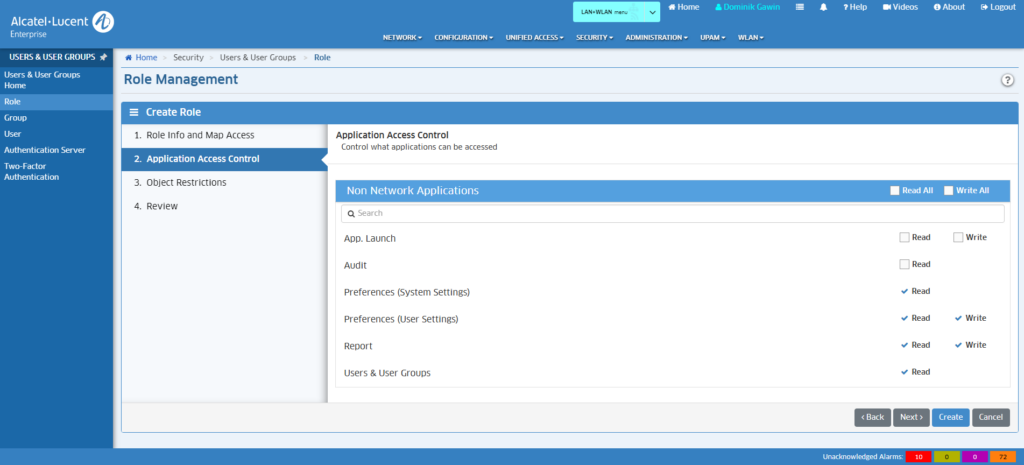
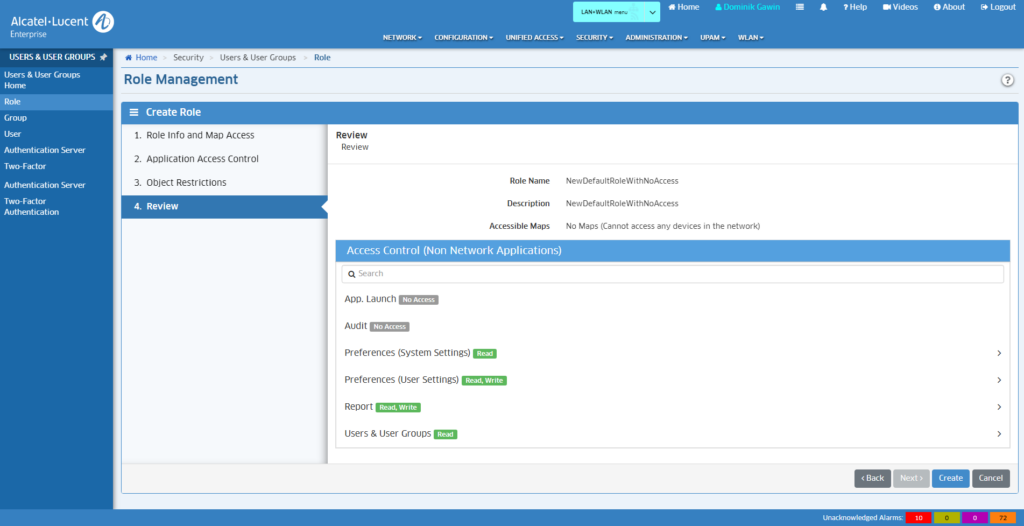
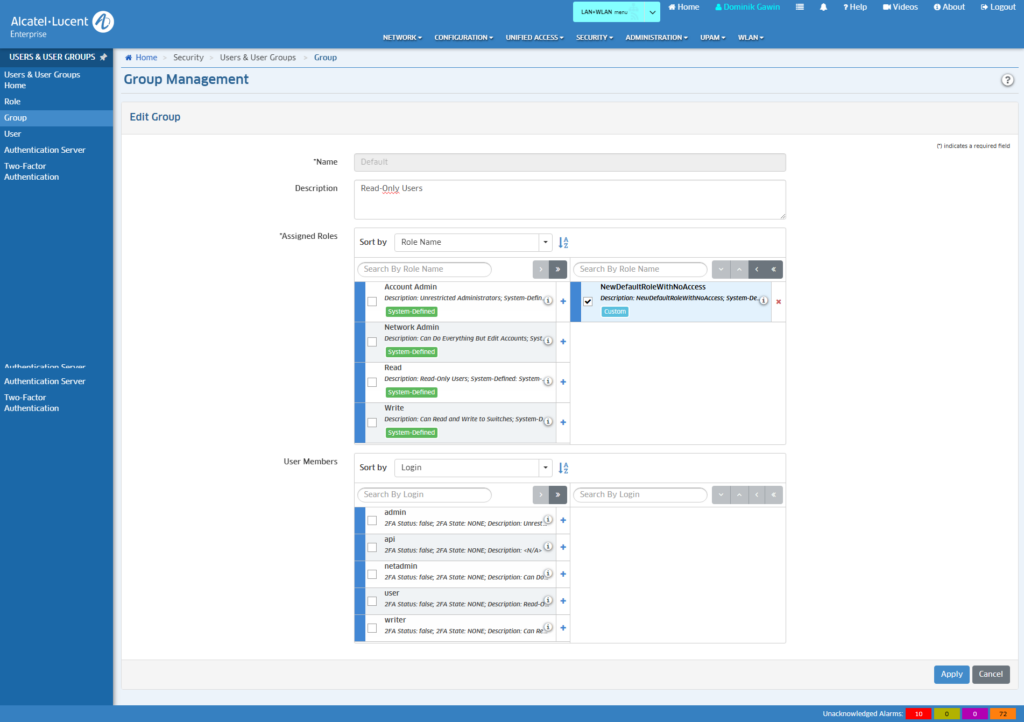
This access without group membership can be restricted further by assigning a custom role to the “Default” group.
Creating the Role
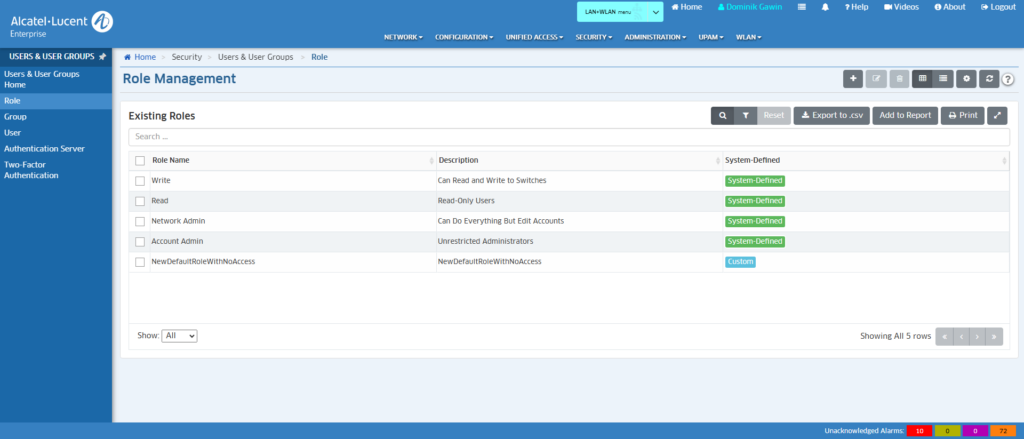
We assign this role to the Default group.
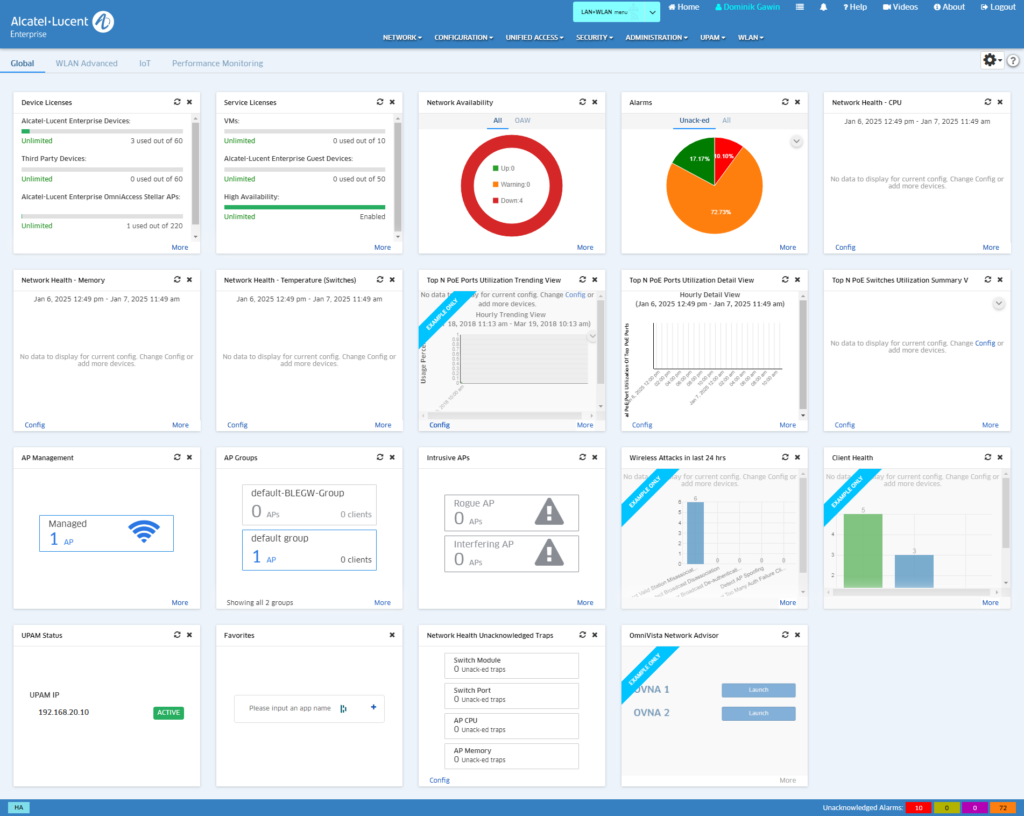
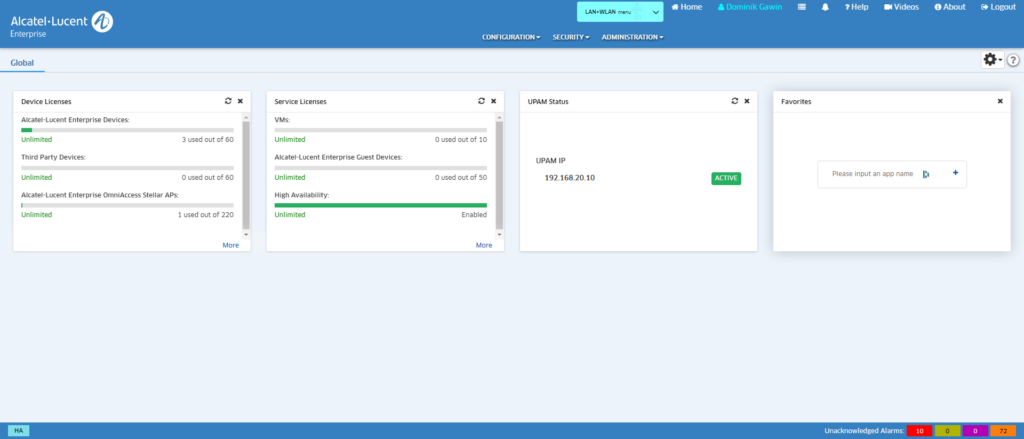
Afterwards, the user only gets a significantly restricted view.
It may also make sense to additionally restrict access via firewall to specific user groups only.
Many thanks to BennyD from the ALE Spacewalkers Community for this tip.
Note: This article reflects my personal experience and is not affiliated with Alcatel-Lucent Enterprise or my employer SPIE.