
OmniVista 8770 RADIUS Authentication
In this article I describe how to configure RADIUS authentication in the Alcatel-Lucent Enterprise OmniVista 8770 Network Management System.
For this purpose I prepared two systems:
- Windows AD/NPS as the RADIUS server
- Windows PC for the Alcatel-Lucent Enterprise OmniVista 8770 server installation
OmniVista 8770 Network Management System
The following configuration steps are required on the OV8770:
- Define the authentication server
- Adjust the password policy
- Change the authentication mode
- Create users in OV (permissions)
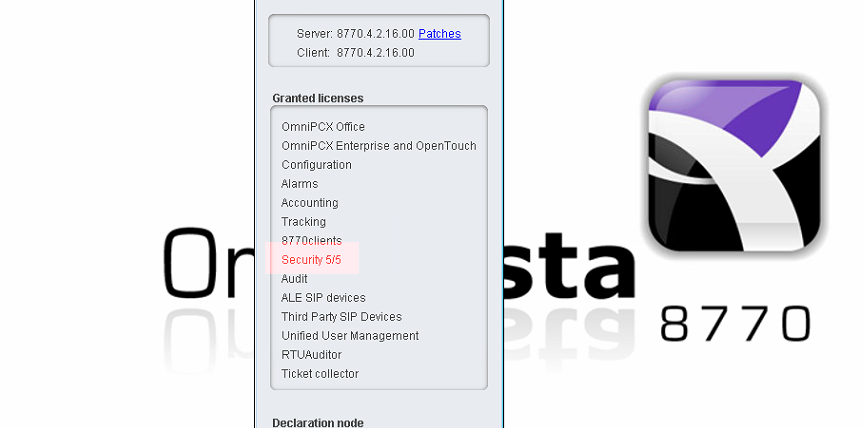
License in OmniVista 8770
OmniVista 8770 requires the Security license. You can check this under Help -> About.
Define the Authentication Server
In the Security application under Setup -> Security we create the authentication server.
Right-click on nmc -> Create -> Authentication server
As the Name we enter AD-Server.
In the IP address field we enter the IP address of the RADIUS / authentication server.
For the Shared Secret we come up with a really strong password and enter it in both fields. For example 12345678 🙂
The remaining values can be left at default, and we click the green check mark.
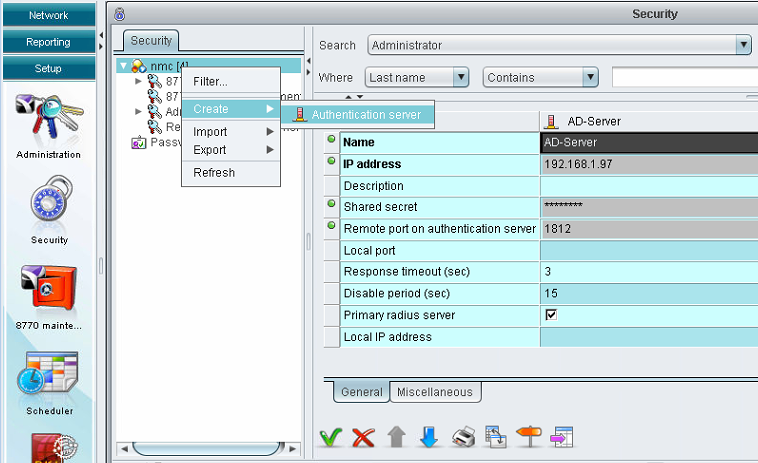
For redundancy, a second authentication server could be added the same way.
Adjust the Password Policy
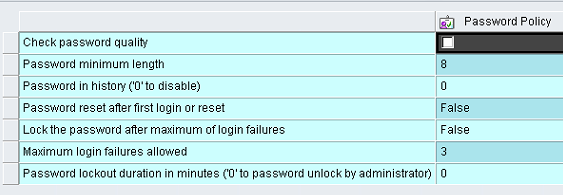
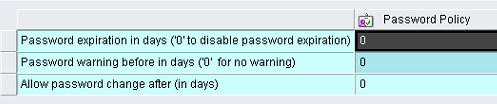
Under Security, the password policy also needs to be adjusted.
We clear all checkboxes here; password aging must be disabled as well.
Change the Authentication Mode
Under Setup -> Administration -> nmc -> OmniVista 8770 we set the Authentication mode to External authentication with local fallback.
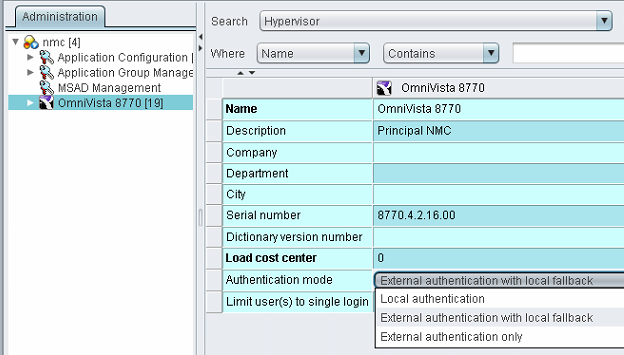
This way, if the connection between OV8770 and the authentication server times out, local user login takes over and access remains possible. With External authentication only, losing the authentication server would mean having ALE Support restore access.
Create Users in OV8770
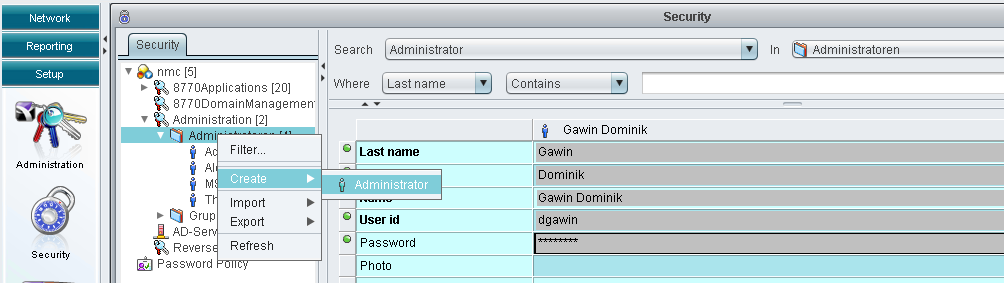
Under Security -> Administration we create a new user.
It is important that the User id matches the domain login (case-sensitive). The password defined here is temporary, since we want to log in with the AD account; it is replaced by the AD password as soon as the user logs in successfully that way for the first time.
To grant the appropriate permissions, the user must then be assigned to the required groups in OV8770. In my case, the Administrators group.
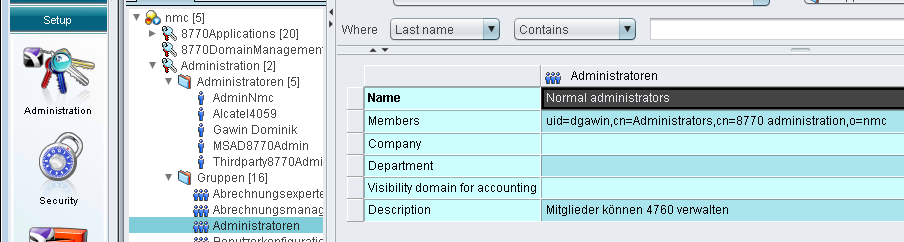
If we now log in to OmniVista 8770 with the username dgawin and the password defined in OV, we get access to the server. Since no RADIUS server has been set up on the external authentication server yet, the timeout kicks in and we can log in locally to OV8770.
Configuring the RADIUS Server (NPS)
In my test setup we configure the Network Policy Server on Windows Server 2012 R2. The following configuration steps are required on the Windows NPS server:
- Add OV8770 as a RADIUS client
- Add a network policy
- Create the user in AD
Create the RADIUS Client
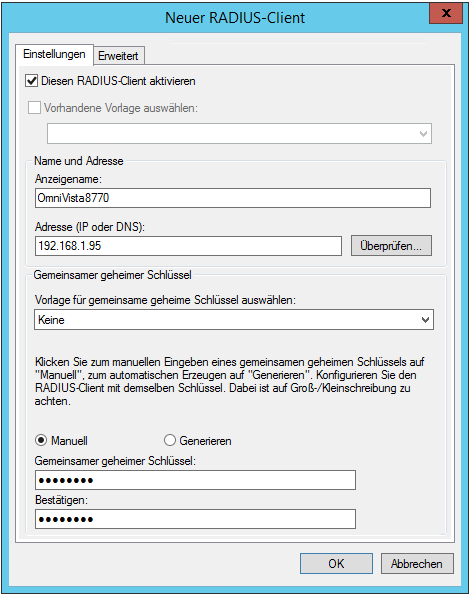
First we define the RADIUS client (OmniVista 8770) so that it is authorized to send requests to the RADIUS server.
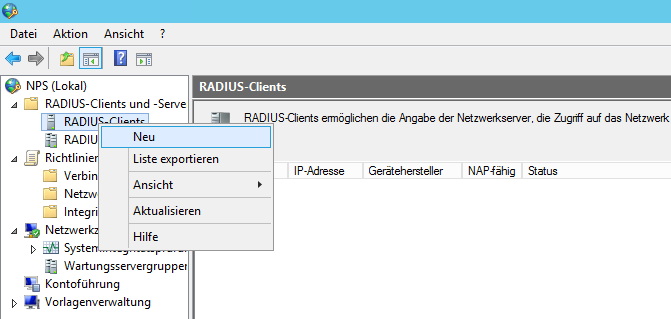
RADIUS Clients -> New
As the Shared secret we enter the same value as the Shared Secret from the authentication server definition in OV8770.
Add a Network Policy
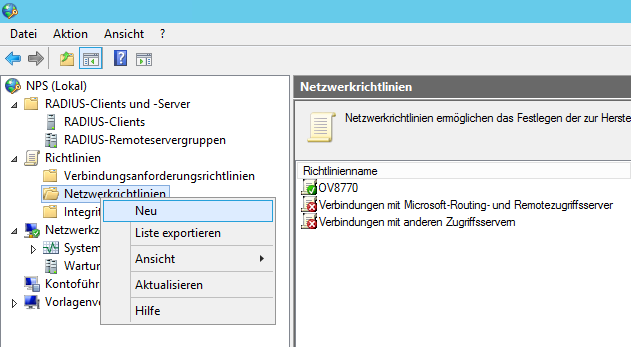
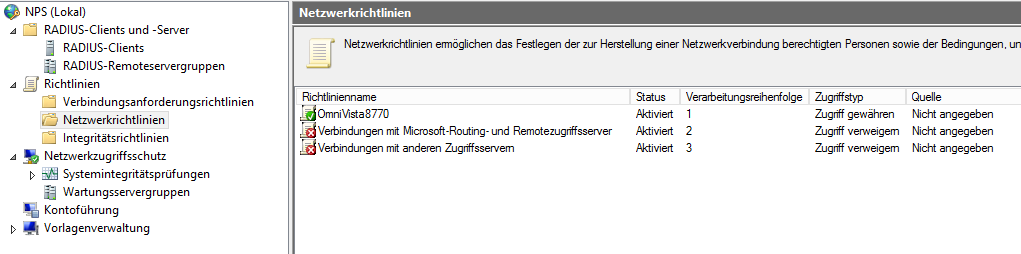
Right-click on Network Policies -> New
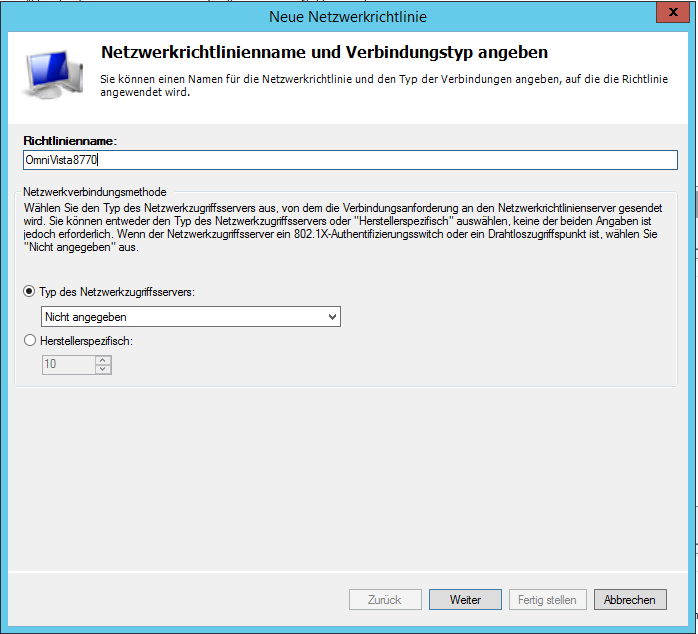
- As the policy name I use OmniVista8770
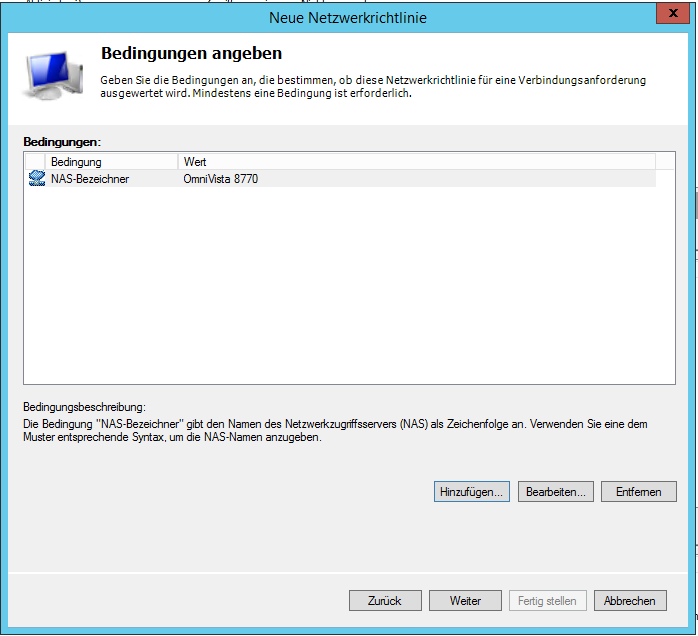
- As the condition I use the NAS Identifier OmniVista 8770
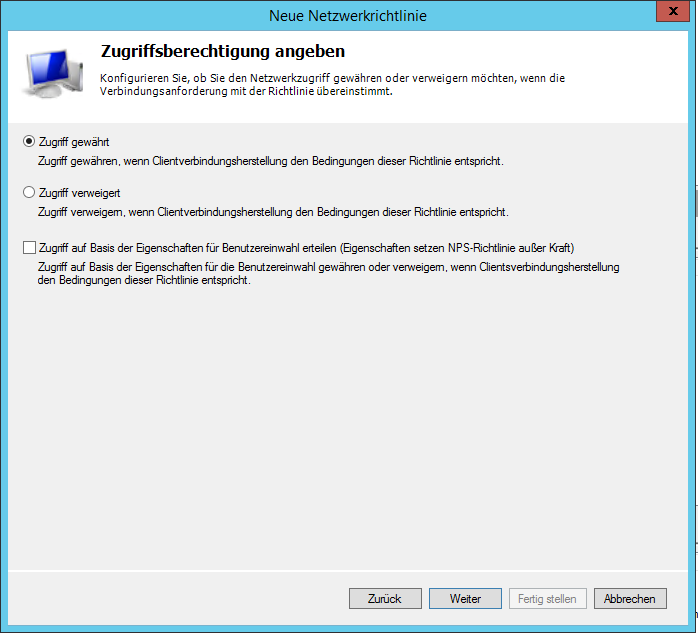
- Access permission: Access granted
- As the authentication method we select Unencrypted authentication (PAP, SPAP)
- Click through the remaining steps to the end and select Finish.
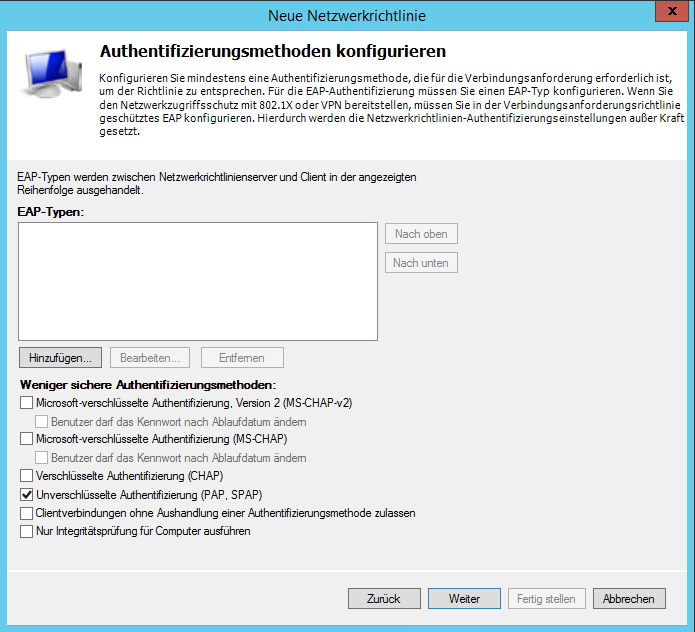
At the time of writing, OmniVista 8770 still only supports RADIUS authentication via PAP.
A First Login Attempt on OV8770
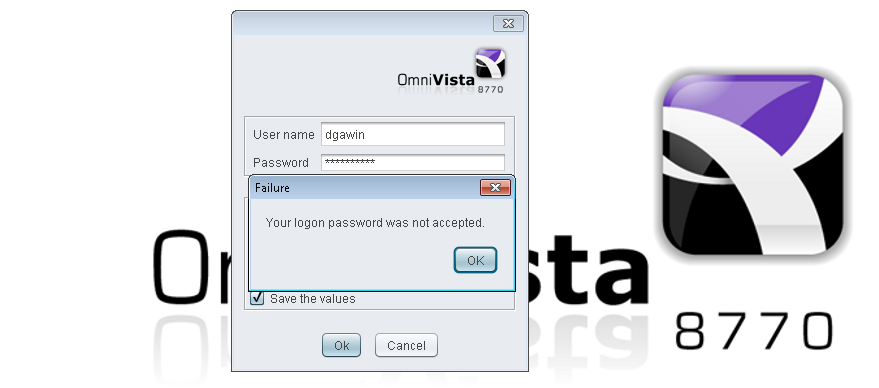
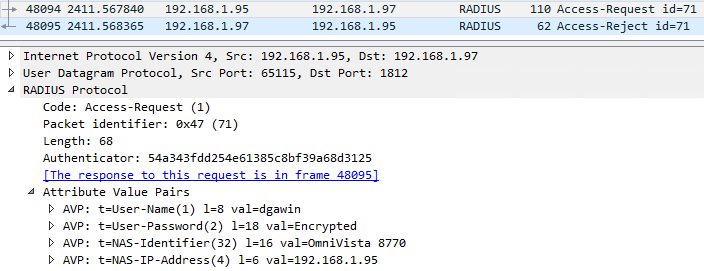
The OmniVista login is now at least rejected with “Your password was not accepted.”
Adding the AD User
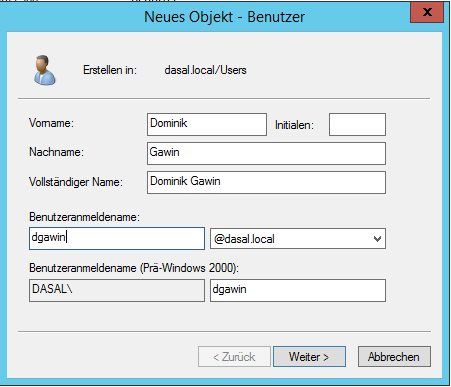
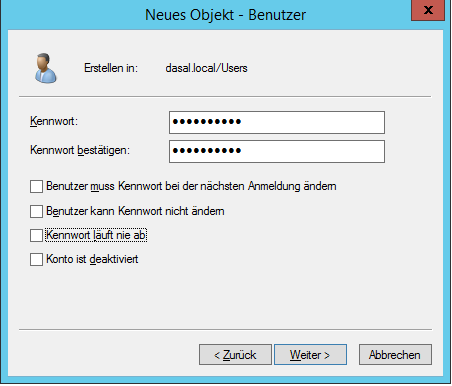
A Second Login Attempt on OV8770
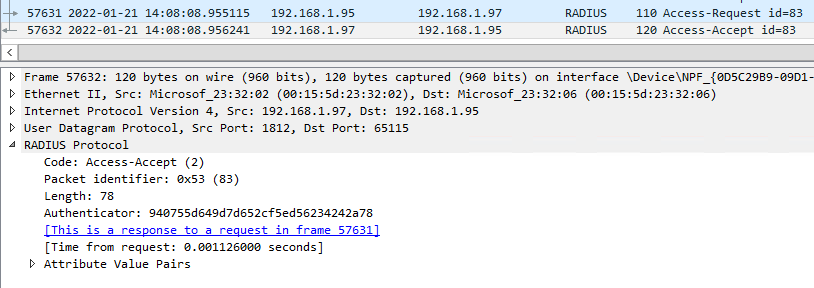
The login succeeds, and we get access to the OV applications according to the group permissions. In Wireshark it looks like this:
What Happens If RADIUS Is Unavailable?
As a test, I stop the NPS service and try to log in again.
It works! In Wireshark we can see OV8770 attempting to authenticate, but since RADIUS does not respond, it falls back to local authentication and grants access.
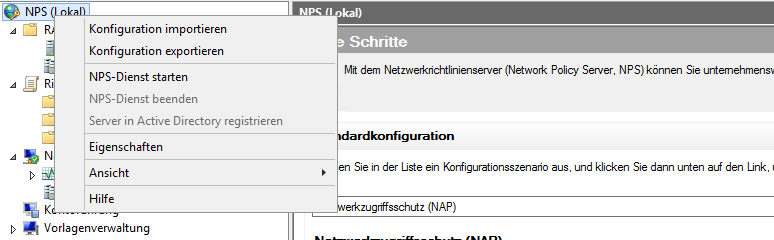

With Authentication mode: External authentication only we would now be locked out.
Further Options
Authentication could additionally be tied to membership in an AD user group.
To do this, simply extend the network policy condition with the group membership. That said, only users who are also set up locally in OV8770 can log in there anyway.
Note: This article reflects my personal experience and is not affiliated with Alcatel-Lucent Enterprise or my employer SPIE.